Update Graphics Card Drivers
If the application is not working as expected, or if your graphics driver is out of date, you should update your graphics card driver. For the latest system requirements information and to learn about specific qualified system configurations, go to the System Requirements page.
If you have a laptop you may need to go to your computer manufacturer's website to download the drivers. Please follow these instructions to update the driver:
-
-
Find graphic card model.
-
Download and install drivers.
-
-
For computers with dual graphics cards.
Update drivers from the computer manufacturer's website
Some computers require you to download graphic drivers directly from the manufacturer.
-
Click here to go to your computer manufacturer's support website.
-
Search for your model or go to the download drivers page and find your model.
-
Check for video or graphics drivers.
-
Download the latest drivers and install, you may need to reboot your computer after installing. If you are having problems to install drivers, please contact the manufacturers tech support.
If you cannot find drivers (or is using a desktop computer), please follow the steps below to download drivers.
Update driver using the graphic card manufacturers website
If you have a desktop computer, or cannot find drivers from the computer manufacturer, you can download and install drivers directly from the graphic card support website.
Find the graphics card model
First, use the DirectX diagnostics tool to find out which graphics card is installed.
-
Open the Device Manager in the Control panel, by searching for Device Manager in the Start menu or search box.
-
Click Display adapters.
-
Check graphics card model.
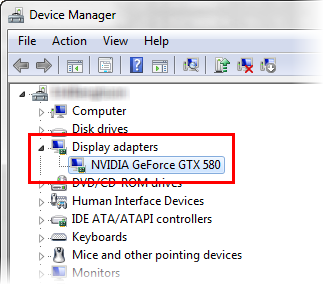
Download and install drivers
-
Click here to go to the manufacturer's website (select Intel, Nvidia or AMD).
-
Follow the instruction on each website to detect and install new drivers.
For computers with dual graphics cards
If you are using a laptop with both internal and external graphics cards, you may need to change the driver setting to force the computer to use the external graphics card in the application.
-
First, update your driver from your computer manufacturer as instructed.
-
In the notification area, open the Nvidia Control Panel, it should be included in the driver package.
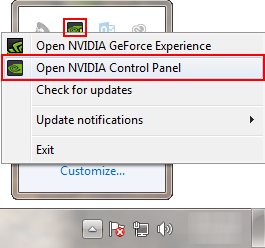
-
Open Manage 3D Settings in the side menu.
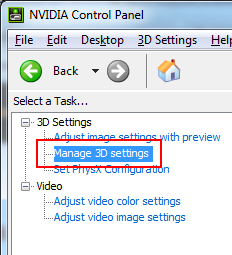
-
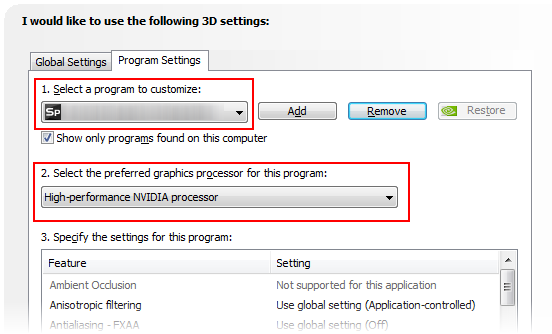
Go to Program Settings, if 3D Sprint is not already added, click Add and add 3D Sprint.
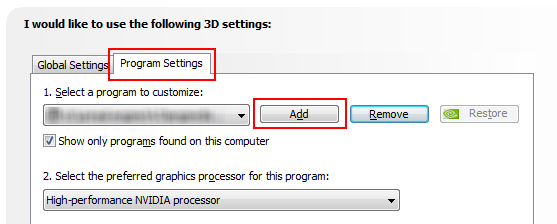
-
Change the setting under 3D Sprint to use the NVIDIA processor.
-
Click Apply.
-
First, update your driver from your computer manufacturer as instructed.
-
In the notification area, open the Catalyst Control Center, it should be included in the driver package.
-
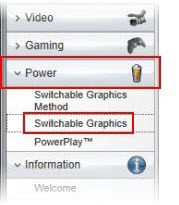
Under Power, click Switchable Graphics.
-
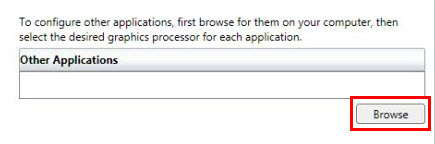
Click Browse and navigate to the 3D Sprint installation folder.
-
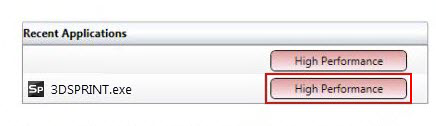
Select High Performance next to 3D Sprint in the Recent Applications section.
-
Click Apply.


