Interaction
UI Colors
The application is developed to intuitively guide you through the process of editing parts, setting up print jobs and managing print queue.
Several colors are used to notify you of the status:
| Color | Messages / Application | Files and Parts | Print Queue |
|---|---|---|---|
|
Blue |
Blue marks something that calls your action, such as a button. It can also indicate selected entities or modes.  |
Verified parts are highlighted blue in the 3D view if selected. 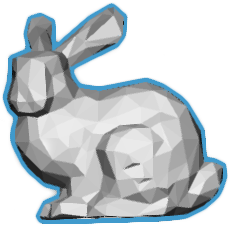 |
Selected print jobs.  |
|
Red |
Signals an error that requires action. 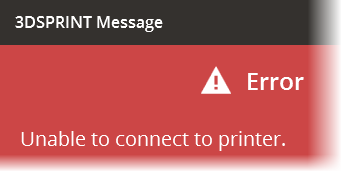 |
Analyzed defect parts and files are marked red, they needs to be fixed and may not print well. Unavailable files are also marked red in the Files module. Files or parts list:  3D view silhouette: 3D view silhouette: 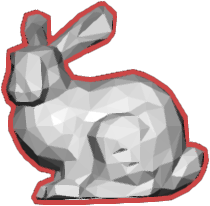 Faces with reversed normal is also red. Faces with reversed normal is also red. |
Failed prints are marked red. Also unavailable printers is marked red:  |
|
Yellow |
Signals a warning that may require your action to correct. 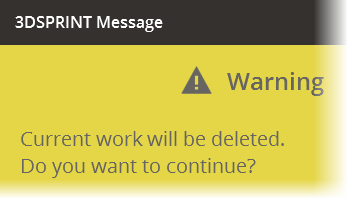 |
Files or parts that cannot be verified, or has not been verified yet is marked yellow. Files or parts list:  3D view silhouette: 3D view silhouette: 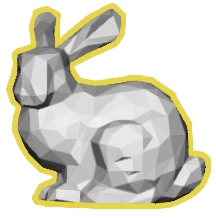 |
Print jobs that requires your attention. Or aborted print jobs in the completed print jobs list.  |
|
Green |
Files or parts in lists are marked green if verified.  |
||
|
Gray |
Neutral color, gives information that will not affect your work or print. Also marks an unselected item or tool. |
Native parts in Files module is marked gray. Does not indicate part state. 
|
Non-selected jobs that are pending or completed.  |


