Keyboard Shortcuts
Use the keyboard shortcuts to efficiently use this application.
File commands
|
Command |
Keyboard Shortcut |
|---|---|
|
New |
Ctrl+N |
|
Open |
Ctrl+O |
|
Save |
Ctrl+S |
|
Save As |
Ctrl+Shift+S |
|
Import |
Ctrl+I |
|
Export |
Ctrl+E |
|
Delete |
Back / Delete |
Main commands
|
Command |
Keyboard Shortcut |
|---|---|
|
Undo |
Ctrl+Z |
|
Redo |
Ctrl+Y |
|
Repeat |
Ctrl+Space |
|
Copy |
Ctrl+C |
|
Paste |
Ctrl+V |
|
Paste (same position) |
Ctrl+Shift+V |
|
Eyedropper (command appropriate - material assignment, infills, color, etc) |
E |
|
Part Placement |
Hold Q, Select part, left click and drag to transform |
Modules
|
Module |
Keyboard Shortcut |
|---|---|
|
Prepare |
Ctrl+1 |
|
|
Ctrl+2 |
|
Queue |
Ctrl+3 |
|
Help |
F1 |
View controls
|
View Control |
Keyboard Shortcut |
|---|---|
|
Top View |
Alt+1 |
|
Bottom View |
Alt+2 |
|
Front View |
Alt+3 |
|
Back View |
Alt+4 |
|
Left View |
Alt+5 |
|
Right View |
Alt+6 |
|
Isometric View |
Alt+7 |
|
Rotate View around Z-Axis of the screen view |
Alt + Right-Click + Drag |
|
Orient to Face |
Alt + Click |
|
Zoom Fit |
Ctrl+F |
|
Zoom Area |
Ctrl+G |
|
Toggle Clipping Plane States (positive, negative or off) |
X, Y, Z |
|
Toggle Clipping Plane visibility |
C |
|
Toggle Vent Drain visibility |
V |
|
Toggle Transparency |
T |
|
Toggle Material |
M |
|
Toggle Infill / Material |
I |
|
Toggle Hardness / Material |
H |
|
Toggle Down Face Angle Visibility |
D |
|
Reset to Default of Down Face Angle |
D+R |
|
Adjust Number of Grades for Down Face Angle |
D+arrows Left or Right |
|
Adjust Degrees for Down Face Angle |
D+arrows Up or Down |
|
Adjust Grades or Degrees in Bigger Increments for Down Face Angle |
D+arrows+(Ctrl / Shift) |
|
Toggle Bright Light Theme Visibility |
B |
|
Toggle Supports Visibility |
S |
|
Toggle Silhouette Edge for Problem Parts Visibility |
P |
|
Toggle Outline of Section Visibility |
O |
|
Move Up / Down Clipping Plane (Available when viewing sections with clipping plane) |
Alt + Scroll Mouse Wheel Up / Down |
The mouse can also be used to manipulate the view of the model:
|
Rotate
|
|
Right-click + drag (3D Rotation) Right-click + Alt + drag (2D Rotation) |
|
Pan
|
|
Press Shift and Right-click + drag or |
|
|
Right-click + Left-click + drag (in order) |
|
|
Zoom
|
|
Scroll wheel or |
|
|
Press Ctrl and Right-click + drag |


Note: When using both mouse buttons to pan, click in correct order, first right-click then left-click.
View Constraints
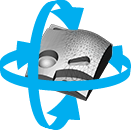
In the Print module the view is constrained to always have a vertical Z-axis.
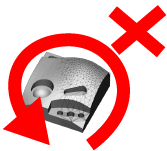
Though the view can be rotated past the top or bottom view, to enable visibility of the entire part.
Print Queue
|
Print Queue |
Keyboard Shortcut |
|---|---|
|
Refresh |
Ctrl+R |
See Also


