
 Add Noise
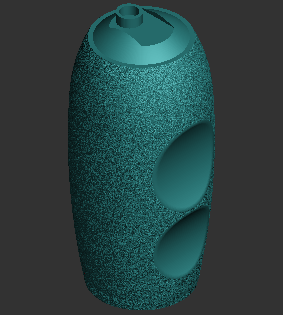
Add noise to the surface of a part to create ergonomic feature such as grip for knobs.
Note: With the Basic or Pro Subscription model, you can add specific licensed features labeled with as required. For assistance, please reach out to our technical support team at http://www.3dsystems.com/support or contact your regional sales manager.
Note: Click Simple UI  to switch between the simple and the advanced User Interface. In the Simple UI, only the tools for minimum workflow are visible.
-
In the Prepare tab, click Add Noise.
-
Select Global or Local.

-
Depending on your selection, follow the appropriate steps below:
-
Global
Select a part.
-
Local
Use the Selection tools to add noise locally. Choose one of the following tools and select the desired area:

-
 Crease - Select faces by growing selections. Click a face on the part, then drag the mouse pointer upward to increase selection sensitivity or downward to decrease it.
 -
 Brush - Select faces by drawing on the part.
 -
 Rect - Draw a rectangle to select faces. Faces inside the rectangle are selected.
 -
 Lasso - Draw a closed loop on the part. The loop closes automatically when the mouse button is released, and faces inside the loop are selected.
-
-
-
Select options.
-
Click Apply to add noise on the surface of the part.
Note: The Undo and the Redo are available until you exist the command by clicking Close (X).
Options
Preset
Save parameter changes as defaults for later use and restore them at any time you need.
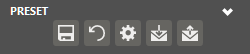
 Set Defaults - Click to set parameter changes as defaults for later use.
 Restore Defaults - Click to restore any changes to the saved defaults.
 Restore Factory Defaults - Restores any changes to the factory defaults.
 Import Saved Parameters - Click to import saved parameters.
 Export Parameters - Click to export changed parameters for later use.
Parameters
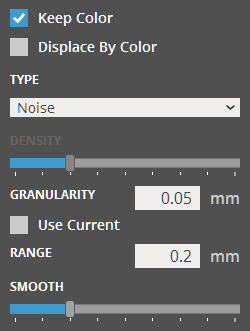
Keep Color - Select to preserve color/texture information when adding noise to parts.
Note: When color preservation is not necessary, it is advisable to clear this option to speed up noise generation.
Displace By Color - Select to apply procedural texture by replacing the specified colors. This option is only available when the Keep Color option is enabled.
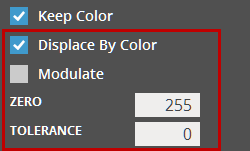
Modulate - Click to select the preset noise type and modulate its density.
Zero (Min. 0 - Max. 255) - Sets the zero point of color intensity to add noise by replacing the defined colors.
Tolerance (Min. 0 - Max. 255) -
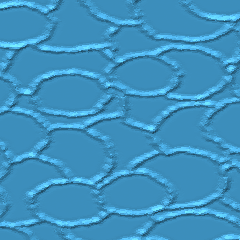
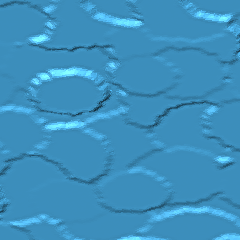
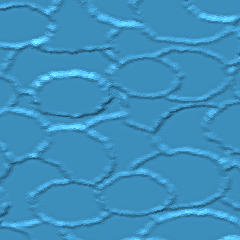
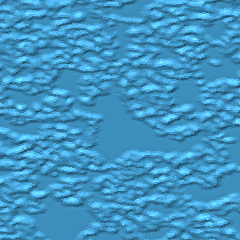
Type - The following noise types are available. Select one of noise types.
|
|
|
|
|
Basic Noise |
Smoothed Noise |
|
|
|
|
|
|
Stipple Up |
Stipple Down |
|
|
|
|
|
|
Short Hatch |
Medium Hatch |
Long Hatch |
|
|
|
|
|
Uniform Region Borders |
Uniform Regions |
Uniform Regions and Borders |
|
|
|
|
|
Random Region Borders |
Random Regions |
Random Regions and Borders |
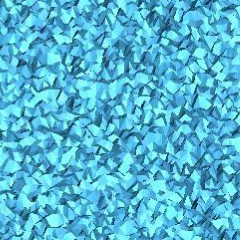
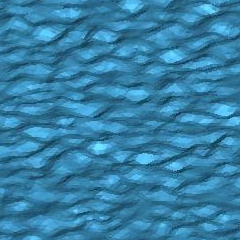
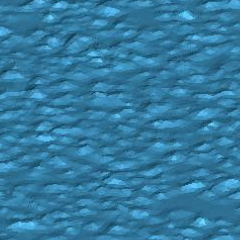
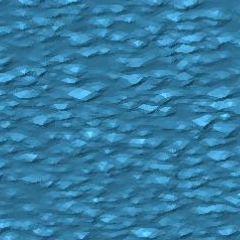
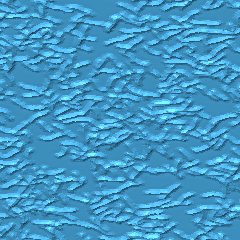
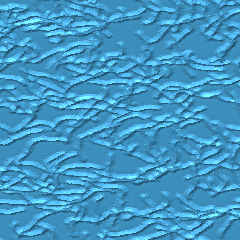
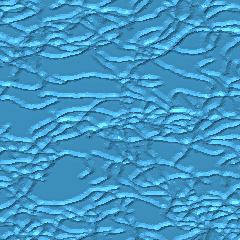
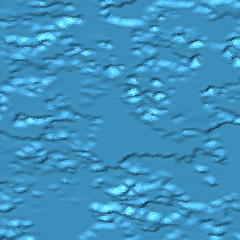
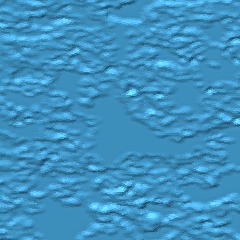
Density (Min. 0 - Max. 8) - Adjust the slider to control the density of noise in a unit range.
Granularity (Min. 0.05mm - Max. 10mm) - The density of the noise content in a unit range. The smaller granularity, the more dense and rough granules are created in a unit range.
Note: Select the Use Current option to use the density of triangles in the selection or in a mesh as the granularity level of noise.
Range (Min. 0mm - Max. 5mm) - The minimum unit range of granules. The smaller range, the more dense and small granules are created in a unit range.
|
|
|
|
|
|
|
|
|
|
|
|
|
|
|
|
|
|
|
|
|
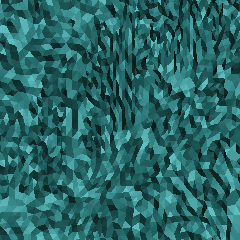
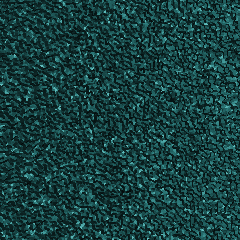

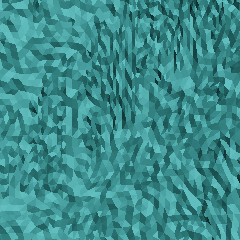
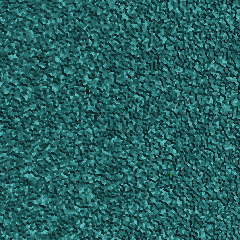

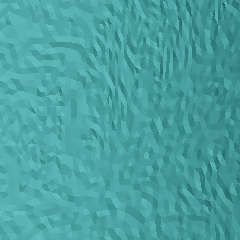
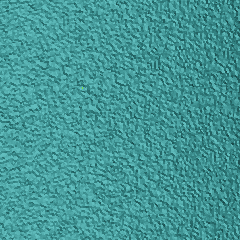
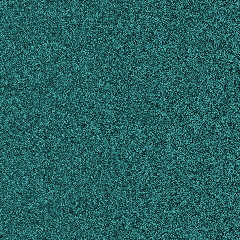
Smooth (Min. 0 - Max. 8) - Adjust the slider to control the smoothness level of noise in a unit range.


