Command Interactions
Command panels follow a certain structure in 3D Sprint.
| Command title |  |
Close - Click to close command |
| Help section - Click help symbol to open up related help page. |  |
|
| Command Tabs - Click on a tab to change command mode or options. |  |
Can be recognized by the lighter background. |
| Command options - Grayed out options are not available or is preselected for the current printer. | 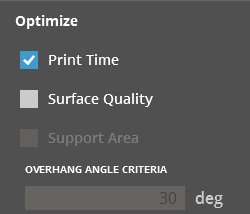 |
|
| Button - Apply current state. |  |
Dialog Conventions
For most commands, when a command dialog is open, you can select parts, change options and click the wide blue button in the bottom to apply changes. Some commands does not require this, instead changes will be applied directly by interaction with the 3D view, such as Transform and Measure commands.
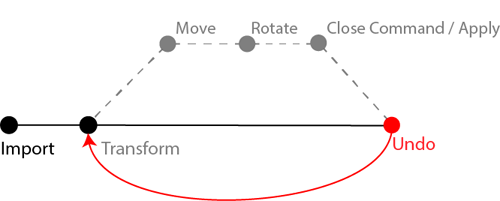
Preview is not widely used, only in certain commands, instead you can apply your changes within the command and Undo to go back to the previous state.
Click  to close the dialog, and cancel any changes that has not been applied.
While the dialog is open, changes can also be reverted by clicking Undo or pressing Ctrl+Z.
Command Help
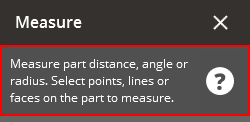
Each command includes a simple help text, click on the help symbol to get detailed information in the help material.
Undo / Redo
Undo and Redo works both within a command, and outside a command.
- While in a certain command, undo will revert the latest change within the command.
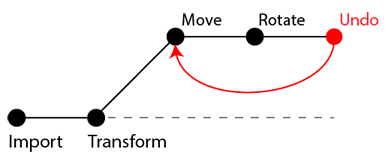
- If you close the command and undo, the application will revert to the state of the data before applying the previous command.