 Offset
Create an offset to the selected part's mesh. Volumetric expand or shrink a part by setting an offset to the original part.
Note: Click Simple UI  to switch between the simple and the advanced User Interface. In the Simple UI, only the tools for minimum workflow are visible.
-
In the Prepare tab, click Offset.
-
Select the part.
-
Click Global or Local to apply the offset to the entire part or a specific area of the part.

-
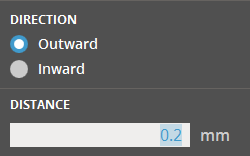
Enter the desired distance, and select the inward or outward direction.
Note: If you applied a Global offset, select the New Part option to create a new part with the offset applied.
-
Click Set.
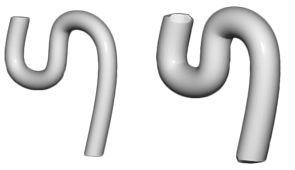
Offset
Offset has the Global and Local options to affect the whole part or just selected faces.
-
Global
This affects the entire selected part.
Global also has the check option, New Part to add the offset as a new subpart in the parts list.
-
Local
This only affects selected faces.
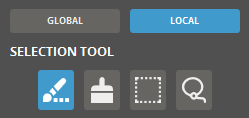
Selection Tools
Select faces using the selection tools. Hold Shift to add faces to selection, and hold Ctrl to remove faces.
-
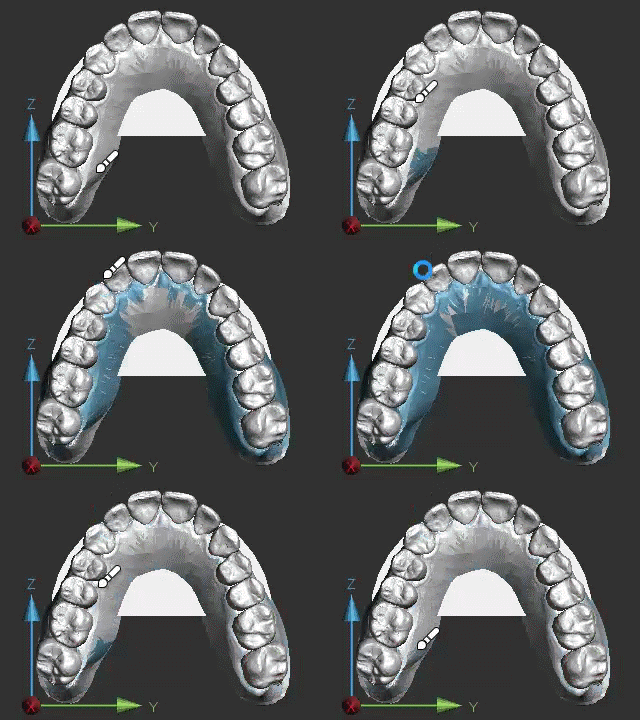
 Crease
Select faces by growing selections. After you select a face on the part, click and drag the mouse pointer upward to increase the sensitivity of the selection. The selection is dynamically increased. Dragging the mouse pointer downward has the opposite effect, and decreases the sensitivity of the selection.
-
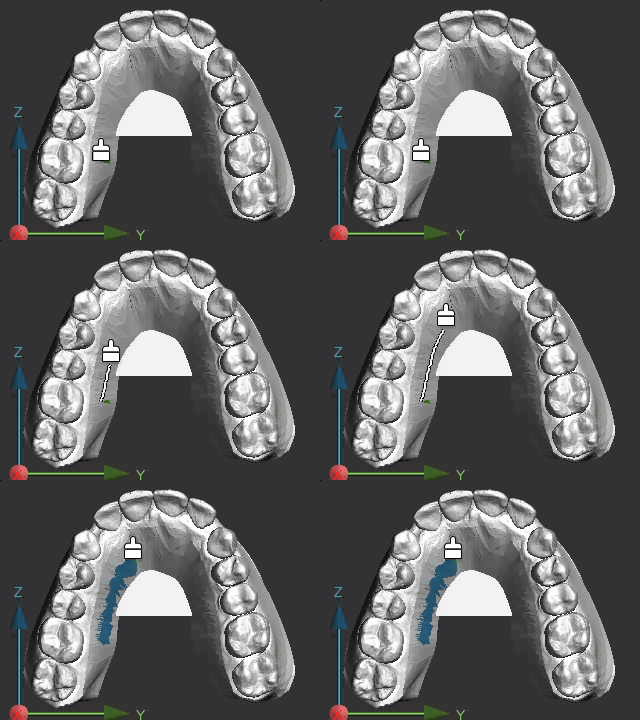
 Brush
BrushSelect faces by drawing on the part.
-
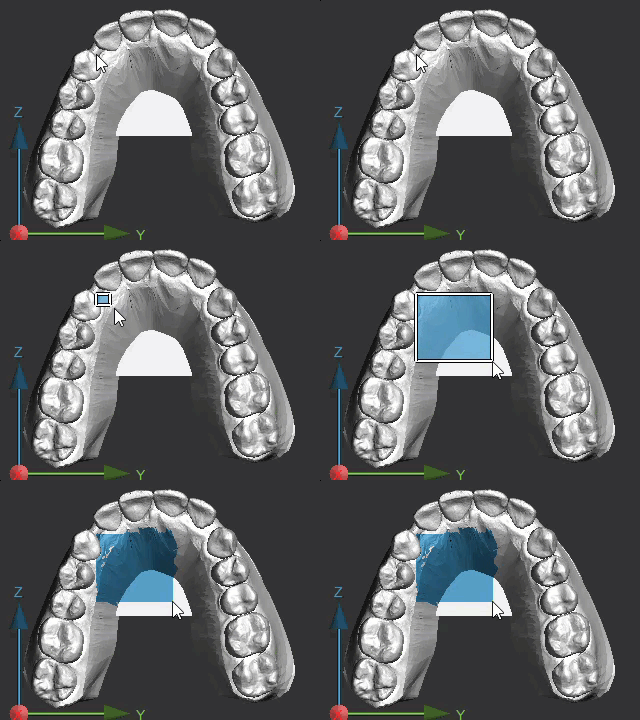
 Rect
RectDraw a rectangle to select faces.
-
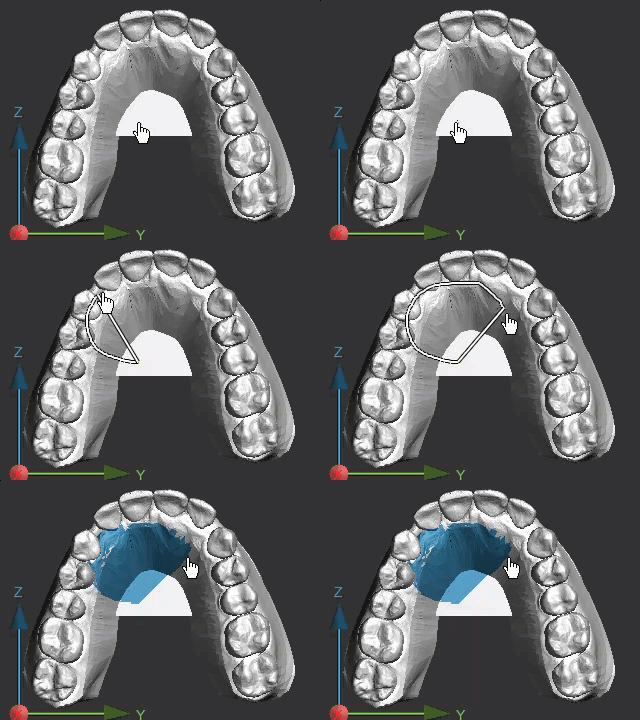
 Lasso
LassoDraw a closed loop on the part. The loop automatically closes when releasing the mouse button and faces inside the loop are selected.
-


