 Scan Order
Supported Printers:
-
SLS-printers
When there is more than one part in a layer, the printer scans the parts in the order they appear in a Build File's list, as shown in the Parts List view in 3D Sprint. Parts are placed on the list initially in the order they were added to the Workspace. Scan Order allows the order that parts are scanned to be changed manually via a simple interface within 3D Sprint.
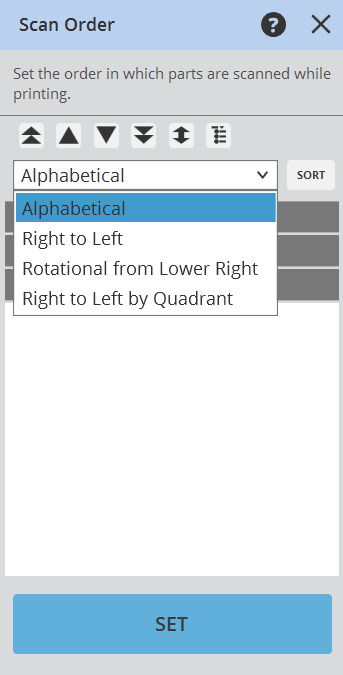
To change the listing and scanning sequence of parts in the Build File, use the Scan Order option from the Print tab and follow these steps:
-
From the Print Tab click Scan Order.
-
Select the part(s) you want to rearrange.
-
Choose the appropriate action from the following:
-
Use the Up
 or Down
  buttons to adjust the part's position in the list.
 -
Use the First
 or Last
  buttons to move the part to the top or bottom of the list.
 -
Click the Flip
 button to flip the entire scan order.
 -
Click the Update Part List
 to synchronize the part's updated position with the Parts List.
 -
Click the Sort
 to arrange the parts accordingly in the list.
-
-
Once you have finished reordering the parts, click Set to confirm the changes.


