 Triangle Reduction
The Triangle Reduction command is used to reduce the number of triangles in the part mesh.
In the 3D Sprint application, parts are represented as triangle-meshes. Triangle Reduction can reduce the file size, or the complexity if the part has a very dense mesh. This will improve the performance of 3D Sprint while manipulating 3D parts.
Note: (NextDent 5100 Printer) Click Simple UI  to switch between the simple and the advanced User Interface. In the Simple UI, only the tools for minimum workflow are visible.
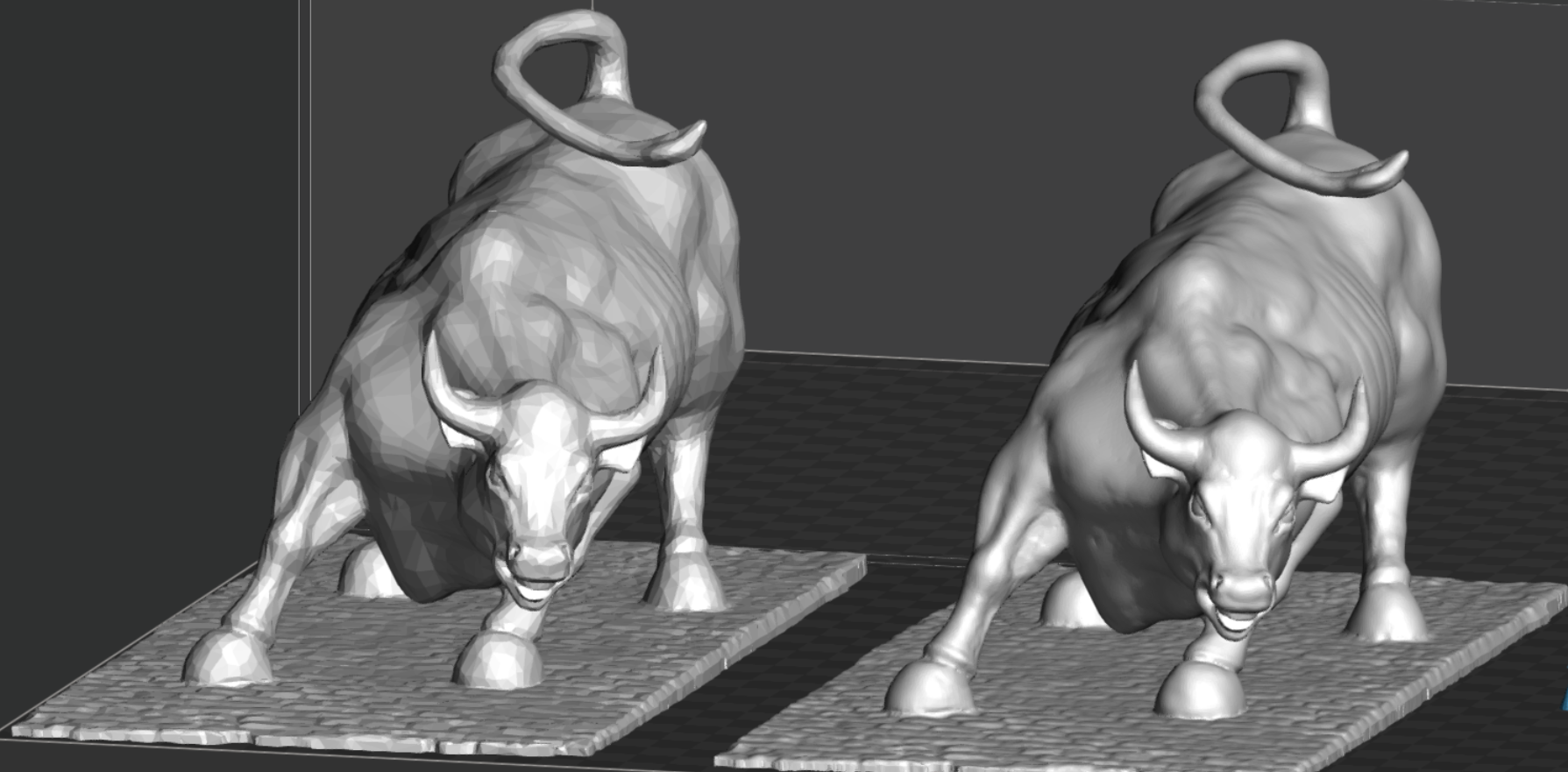
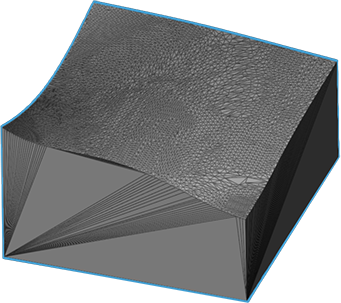
Note: Using triangle reduction needs caution as it can change parts’ surface to lose their detail feature like below image.
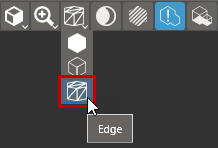
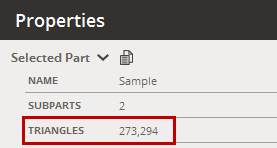
Note: To view the triangle density in the Part Properties, toggle Edge shading mode in the View Overlay and select the part.
-
In the Prepare tab, click Triangle Reduction.
-
Select one or more parts.
-
Select Maximum Allowable Error to set the overall accuracy of the resulting part mesh. This sets the maximum error that will be allowed.
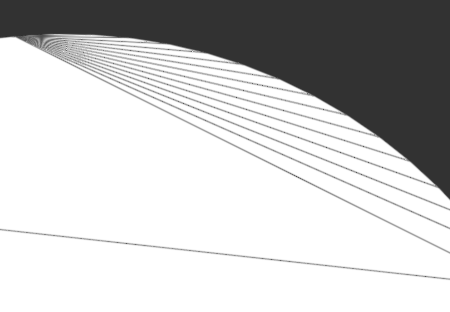
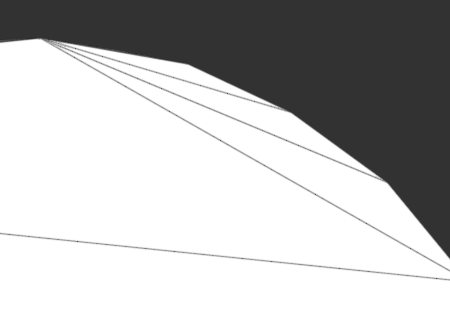
0.1mm
1mm
-
Enter values in Triangle Count or Remaining Ratio to target a specific number of triangles or a percentage of triangles to keep.
.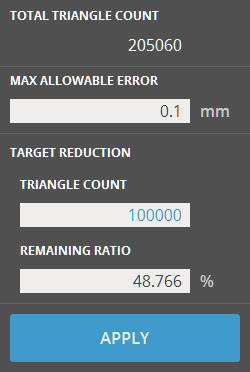
Note: The Maximum Allowable Error takes priority. If the maximum error is not achievable, the final number of triangles or percentage will be higher than the target value.
-
Click Apply. Repeat if additional reduction is necessary.
-
Click Close to complete the commend.
-
Inspect the final result using Edge display in the View panel.


