 Update Printer Firmware
Printer firmware updates will be checked for automatically and can be downloaded from the update server. You can also manually check for updates of the current printer firmware. For detailed instructions on updating your printer firmware, please refer to the printer's User Guide.
-
Ensure the correct printer is selected as Current Printer. You can set this using the Printer command in the Print module.
Note: The current printer can be seen in the Printer Information box on the bottom right of the view.
-
Ensure that the Check For Printer Firmware Updates option is turned on in the Preferences. The application will then check for firmware updates.
-
If an update is found, follow the on-screen instructions to download and install.
-
When the printer has installed the firmware and restarted, reconnect to the printer.
Firmware Compatibility
To ensure a good printable result, and a working connection, the application will check that a compatible version of the firmware is used. So after updating the application, to meet the minimum requirement, the printer firmware may also need to be updated before printing.
This will be checked before sending a print job, and a dialog will be shown if the printer firmware is not compatible, asking you to update the printer firmware or update 3D Sprint.
Note: If another user updates the printer firmware, you may need to update 3D Sprint or downgrade the printer firmware before using that printer.
Update a printer that is not connected to the internet
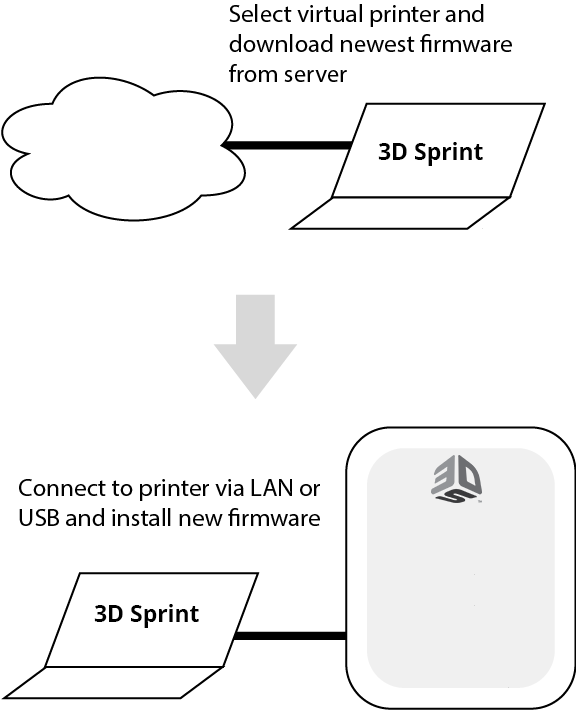
Some printers are on a network that is not connected to the internet. In those cases, a virtual printer can be used to download the firmware. After downloading, connect to the printer and install the firmware on the offline network (or via USB).
-
Ensure the correct printer is selected as Current Printer. You can set this using the Printer command in the Print module.
Note: The current printer can be seen in the Printer Information box on the bottom right of the view.
-
Ensure that the Check For Printer Firmware Updates option is turned on in the Preferences.
-
The application will check for updates of the firmware for the virtual printer model.
-
If an update is found, follow the instructions to download.
-
Connect to the actual printer via network or USB.
-
In the Printer Tools, click Check for Updates.
-
Follow the instructions to update the printer with the previously downloaded firmware.
See Also


