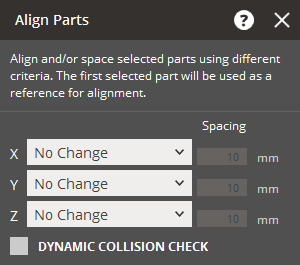
Align and/or space selected parts using different criteria. This allows
parts even with different widths and heights to align with one another.
Note: The first selected part will be used as a reference
for alignment.
In the Print tab, click Align Parts.
Select the part you want to use as the reference for alignment.
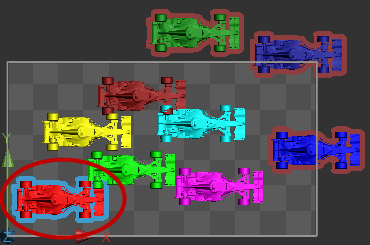
Select the other parts you want to move and align with the reference
part.
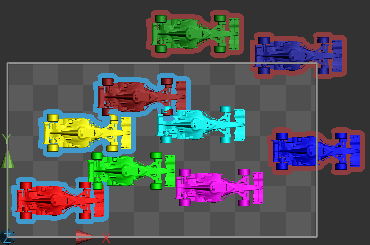
Note: Hold down the Shift
key to select multiple parts. At least two parts must be selected
to use this command.
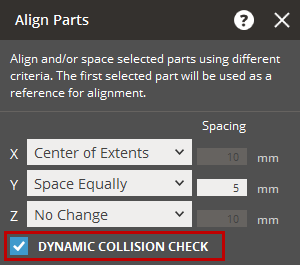
To align the selected parts with the same center along the X-axis,
set the X-axis option to Center of Extents.
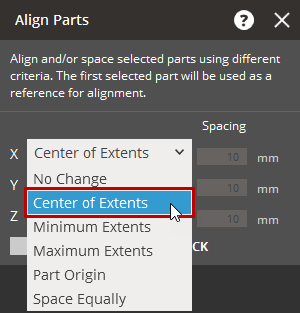
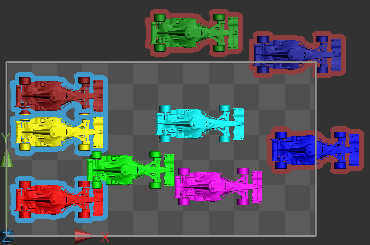
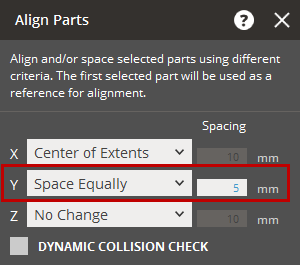
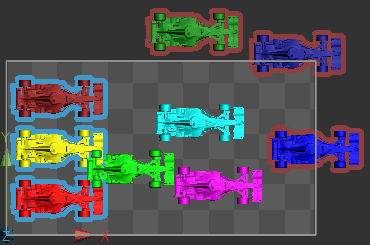
To distribute the selected parts evenly along the Y axis, set
the Y-axis option to Space Equally and
specify a distance in the Spacing.
Note: Select the Dynamic Collision
Check check box to check for collisions
between supports
and other parts during alignment.
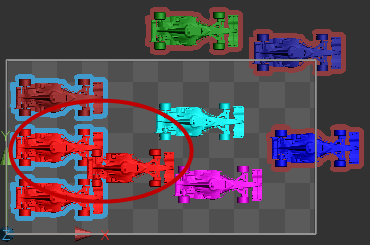
Check the results, and click anywhere outside of the parts to
confirm the changes.
Repeat the process from step 2 to 6 to align additional parts
as needed.
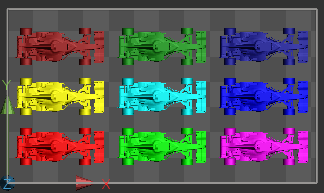
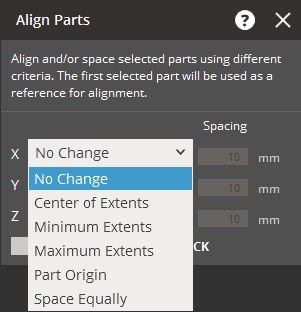
No Change - Keeps the current position
of parts.
Center of Extents - Aligns parts in
a specified axis through their centers.
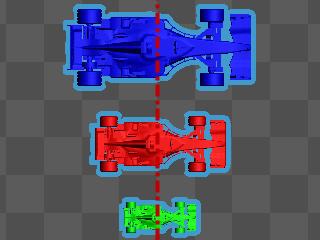
Minimum Extents - Aligns parts in
a specified axis along the minimum of a reference part.
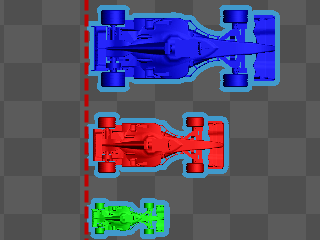
Maximum Extents - Aligns parts in
a specified axis along the maximum of a reference part.
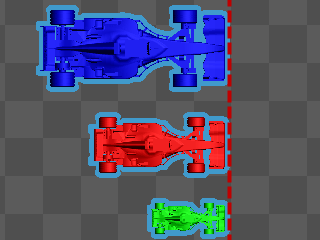
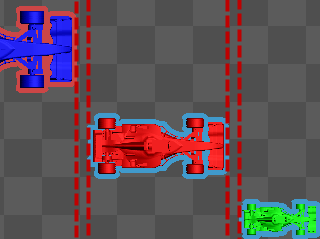
Part Origin - Aligns parts in a specified
axis along the origin of a reference part.
Space Equally - Distributes parts
evenly with a specified distance in a specified axis.
Dynamic Collision Check - Allows to
check the collision between supports
and other parts while aligning.
 Align Parts
 to switch
between the simple and the advanced User Interface. In the Simple UI,
only the tools for minimum workflow are visible.
to switch
between the simple and the advanced User Interface. In the Simple UI,
only the tools for minimum workflow are visible.