Associate Support File to Part
For users that want to create supports in other software and associate them to the part in 3D Sprint are now able to use the import support command to import supports and associate them to a selected part.
For a training video
on how to use this command.
Please visit: https://support.3dsystems.com/s/article/3D-Sprint-Help-and-Video-Channel
Imported supports are able to be associated with a single selected parts in the parts list. Supports can be imported from the following supported file types: STL, CTL, OBJ, PLY and AMF.
To import a support and associate it with a part:
On the print tab select a single part from the parts list.
Note: Importing supports for multiple parts is not available. Please import them singularly or group the parts using the Combine command before importing a support file.
Right click on the part in the part list and select Support > Import to import support.
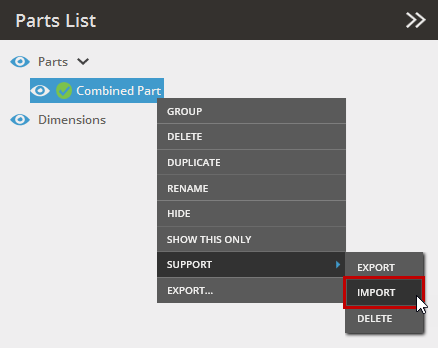
Select the support file from the import dialog.
Click Open.
3D Sprint will not check if the imported supports are "correct" (size and shape) for the part and anchor points will not show up after you go to the Analyze tab of the Smart Supports dialog in case of imported supports.
3D Sprint will no longer allow supports to be imported too far form the associated part. So parts that have been transformed or do not fit into the Print Platform may need to have the supports imported before performing these actions.
See Also


