 Generate Geometry
Generate a simple geometry part, a box or support geometry can be created.
Note: Click Simple UI  to switch between
the simple and the advanced User Interface. In the Simple UI, only the
tools for minimum workflow are visible.
to switch between
the simple and the advanced User Interface. In the Simple UI, only the
tools for minimum workflow are visible.
Box
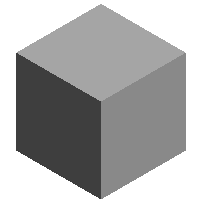
- Click Box.
- Enter X, Y and Z values.
- Click Set to create the geometry.
- Move the box into position using the Transform command.
Cylinder
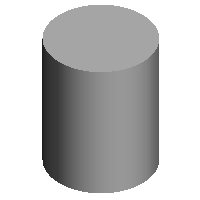
Click Cylinder.
Enter Radius and Height values.
Click Set to create the geometry.
Move the cylinder into position using the Transform command.
Cone
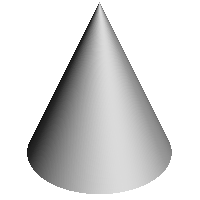
Click Cone.
Enter Top Radius, Bottom Radius, and Height values.
Click Set to create the geometry.
Move the cone into position using the Transform command.
Sphere
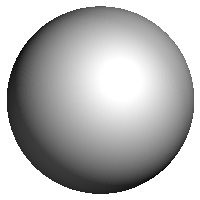
Click Sphere.
Enter Radius value.
Click Set to create the geometry.
Move the sphere into position using the Transform command.
Torus
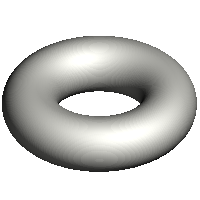
Click Torus.
Enter Radius (major radius, which is the distance from the center of the tube shape to the center of the torus) and the Aspect Ratio (range: Min. 0.05 - Max. 1) values. The Aspect Ratio represents the ratio between the major radius and the minor radius (radius of the tube shape).
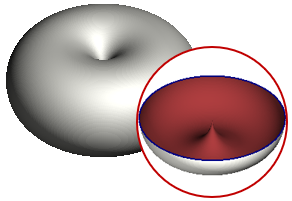
Note: If the Aspect Ratio is set to 1, a horn torus (a torus with no hole) is created, as shown in the image below.
Click Set to create the geometry.
Move the Torus into position using the Transform command.


