 Import
Import part files directly into the current project. Imported meshes will be automatically healed. Supported file formats can be found under Supported Files.
In the Prepare or Print tab, click Import.
Select a 3dprint file(s) (3D Sprint native project file) or any supported file(s), and then click Open to import the file(s) into the application.
Note: Supported file formats can be found under Supported Files.
Note: Multiple files can also be imported by drag and drop from windows file explorer into the application.
Note: Multiple 3D Sprint files that use the same printer technology can be imported into a single platform for printing.
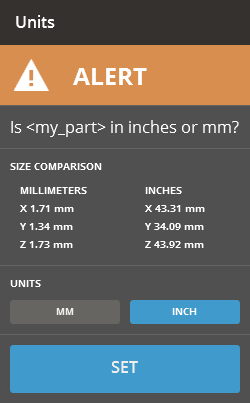
If the unit is not set an alert appears, select unit of imported file and click Set.
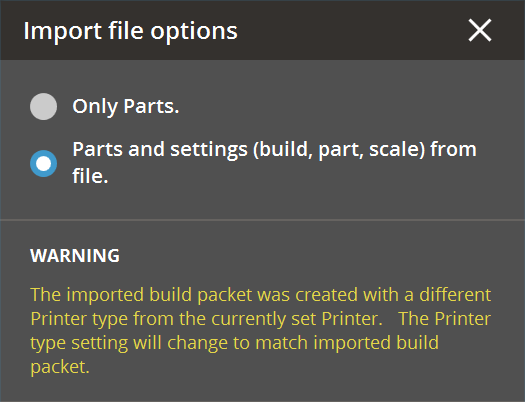
When importing an SLS Build File (.bpz), if the current printer setting do not match those in the .bpz file you will be given an option to import the parts only (if an SLS printer is currently selected) or import the part and change the printer settings to match those in the build packet, where able.
When importing CAD files, you can use the CAD Import Options to set tolerances for converting faces in the CAD files into meshes. The following options allow you to import the CAD data into the application without losing any important surface information.
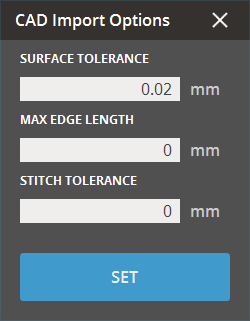
Surface Tolerance (Min. 0mm - Max. 1,000mm) - Specifies the maximum distance from the analytical surface to its triangulation. Higher values result in fewer triangles but rougher surfaces. Lower values create smoother surfaces with more triangles.
Max Edge Length (Min. 0mm - Max. 100mm) - Specifies the maximum edge distance. Edges longer than this threshold will be split into triangles. When set to zero (0), the maximum edge length is automatically determined during the import process.
Stitch Tolerance (Min. 0mm - Max. 1,000mm) - Stitches nearly connected triangles together to remove holes. Setting this option to zero (0) automatically determines the stitch tolerance during import.
When the file is imported the file will be automatically fixed. Fixing all errors is not possible, so check the part after importing it for defects. This feature can be turned off in the application preferences.
See Also


