 Project Texture
Project an image to a part's surface. Supported image file formats are .jpg, .jpeg, .png, .bmp, and .gif.
Note: Click Simple UI  to switch between the simple and the advanced User Interface. In the Simple UI, only the tools for minimum workflow are visible.
-
In the Prepare tab, click Project Texture.
-
Click Import to import an image file.
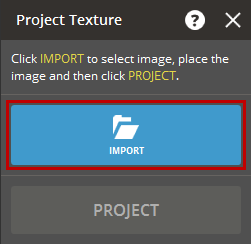
Note: Supported file formats: JPG, JPEG, PNG, BMP, GIF.
-
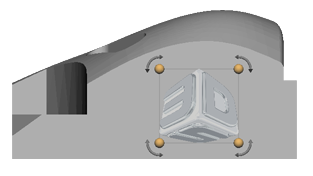
Adjust the size and rotation of the image as needed.
-
Rotate the viewpoint to the desired projection surface.
Note: Use the standard views in the View to get straight projections.
-
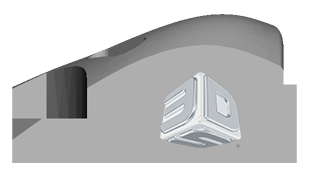
Once the image is positioned correctly, click Project to apply the texture to the part.
See Also


