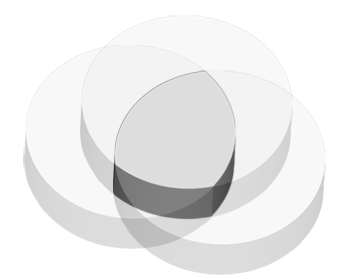
Boolean
Either unite, cut or get the intersection of the parts. It is possible to do boolean operations on two or more parts.
Note: (NextDent
5100 Printer) Click
Simple
UI  to switch between the simple and the advanced User Interface. In the Simple
UI, only the tools for minimum workflow are visible.
to switch between the simple and the advanced User Interface. In the Simple
UI, only the tools for minimum workflow are visible.
In the Prepare tab, click Boolean.
Select type: Unite, Subtract or Intersect.
Unite

Select parts on the Print Platform to unite.
Make sure that the parts are actually intersecting using the clipping view, there might be a small gap or coplanar surfaces. Use the Extrude or Offset commands to expand one part or part's intersecting surface to ensure a good printed result.
Note: This is especially relevant for parts tesselated from CAD files. If the gap is intentional (for example in a joint), this should be ignored.
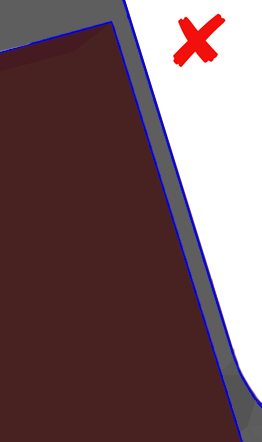
Surfaces not intersecting, leaves a small gap.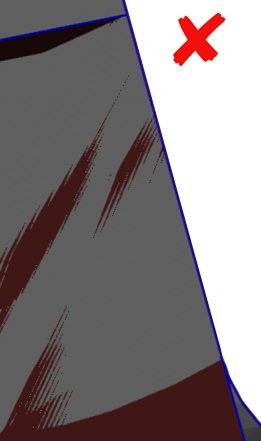
Coplanar surfaces, may induce errors or small gaps.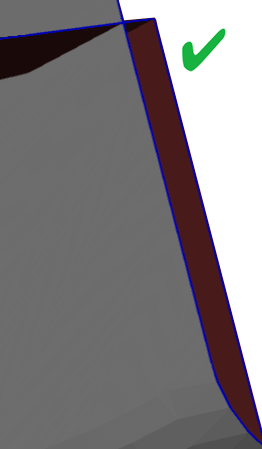
Surfaces intersecting, generates a good result.Click Set.
Ensure that resulting part is without errors. If the part is highlighted red, try the Fix command to fix errors in the mesh.
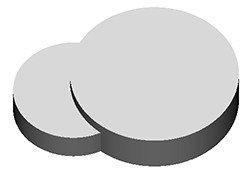
Subtract
Note: At least one Target Part and one Tool Part must be assigned.
Select Target Parts.
Select parts on the Print Platform to subtract from.
Select Tool Parts.
Select parts on the Print Platform to subtract with.
Click Set.
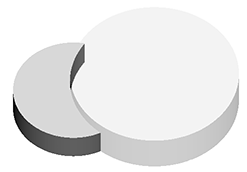
Intersect

Note: At least one Target Part and one Tool Part must be assigned.
Select Target Parts.
Select parts on the Print Platform of which you want the volume to remain.
Select Tool Parts.
Select parts on the Print Platform to define the intersecting volume
Click Set.
The intersecting volume of the Target parts defined by the Tool parts will remain.