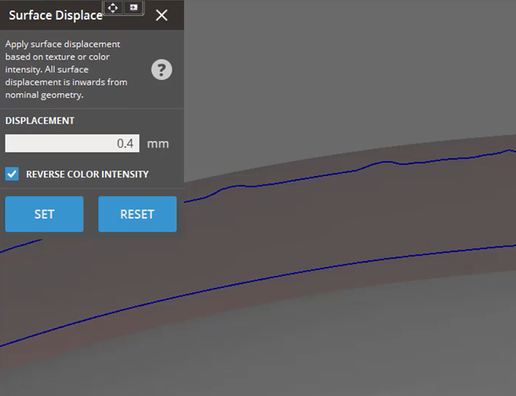
Surface Displace
Surface Displace is a technique used to add physical texture to parts without the need for complex modeling processes typically associated with texturing. The Surface Displace tool works by converting color intensity data from a part's surface, including texture, vertex, or face color information, into displacement. This allows for the creation of detailed surface patterns and textures, enhancing the depth and realism of printed objects. This tool is compatible with models that have a color texture layer and performs best when the texture layer is in greyscale.
To use the Surface Displace, models must first have a texture applied using the Project Texture command from the Prepare tab.
Change the View Mode to Part Color  in the View Overlay to check the part texture is present.
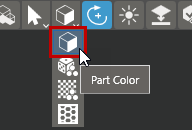
To apply a surface displacement
-
Select one or multiple textured objects to apply a surface displacement to.
-
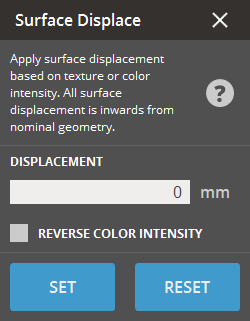
Specify the Displacement value in the dialog.
This value specifies the maximum possible magnitude of offsetting.Note: All displacement is inwards. Use care with thin walled objects.
-
The option Reverse Color Intensity inverts the offset behavior. When disabled, light areas are the most offset.
-
Click Set to assign to all selected models.
To preview the Surface Displacement
Enable a Clip Plane while in the Surface Displace dialog to see a preview.
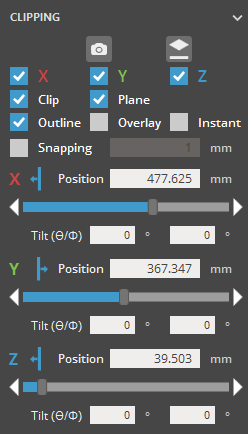
The blue boundary will show an estimate of the displacement effect.
Note: This preview will only be shown when a clip plane is active and the Surface Displace command is open